
CoMax Presenter · Features
Everything it does, and how it works
CoMax Presenter is a Mac app for training and how-to videos. You film once and get a YouTube video and a vertical Reel, with your screen, captions and branding already on. Here is each part in plain English.
01 · Recording
Two videos from one recording
Press Record once and you get a 16:9 video for YouTube and a 9:16 video for Reels, TikTok and Shorts. Each one is laid out for its shape as you film, so there’s no cropping or re-editing afterwards.
How it works
- Choose your camera and microphone once, in Settings.
- Press Record (⌘ R) and talk.
- Press it again to stop. Both videos are saved in Movies › CoMax Presenter.
Only need one shape? Switch the other off and the Mac does less work.
02 · Layouts
Four layouts for you and your screen
Show an iPad, an Android tablet, your slides, your whole Mac screen or just one window, next to your camera. Pick a layout with one click and both videos change together, even while you’re recording.
-
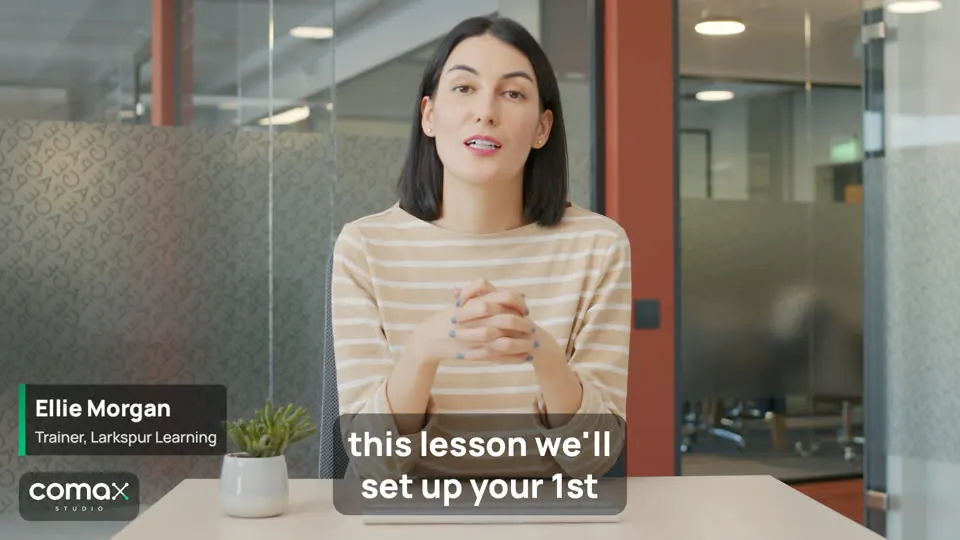

Me
Just you. ⌘ 1
-
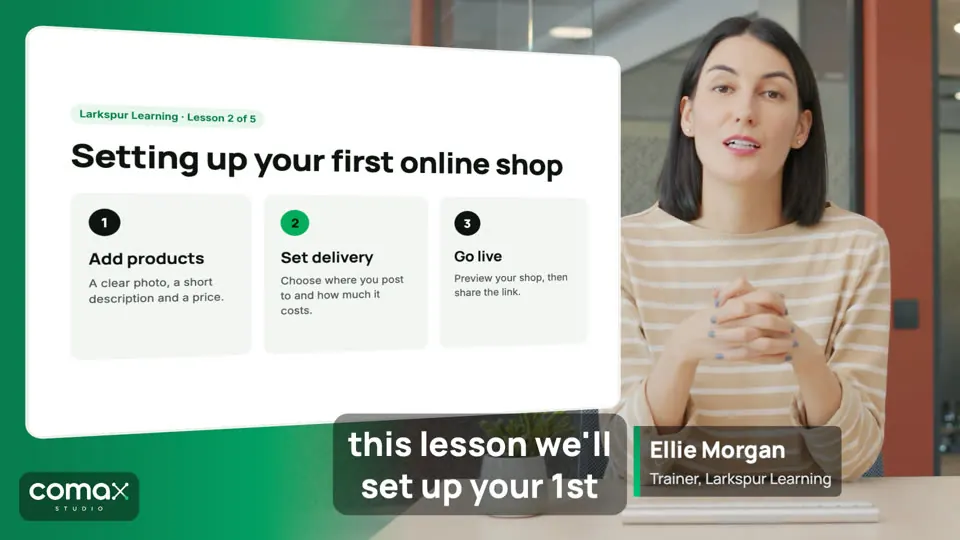
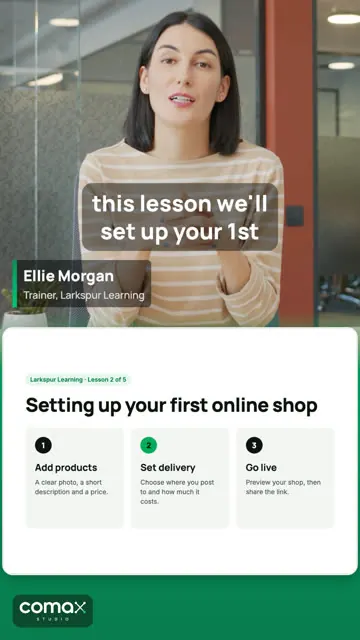
Me + screen
You, with your screen as a card beside you. ⌘ 2
-
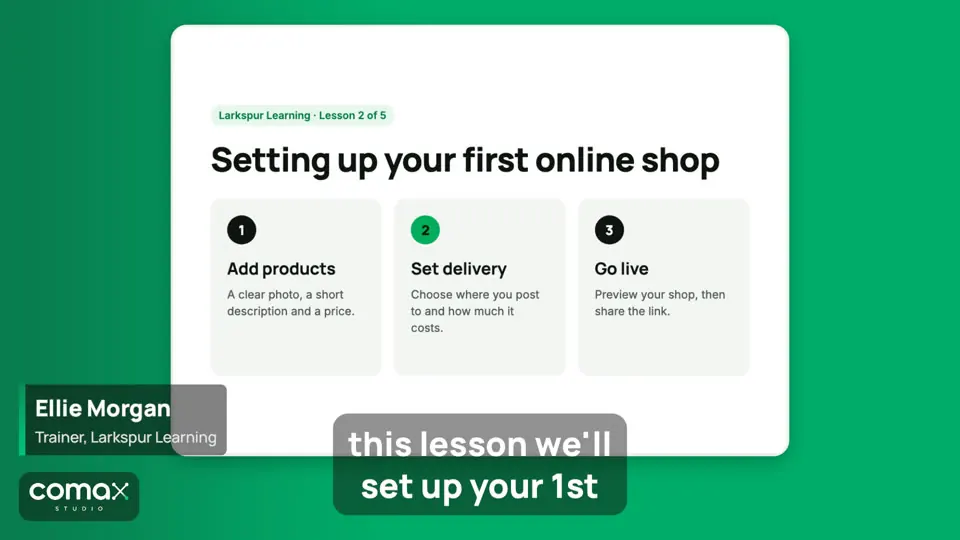
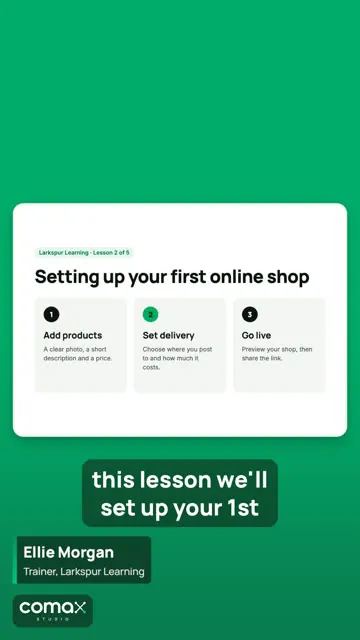
Screen only
Your screen, with your voice and captions. ⌘ 3
-

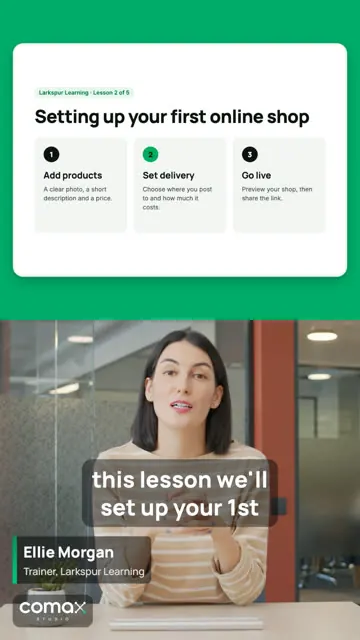
Screen + me
Your screen, with you in a small bubble. ⌘ 4
How it works
- Plug in your iPad with its cable (tap Trust the first time), choose your slides, or pick your Mac screen or one window from the Screen menu.
- Click a layout, or press ⌘ 1 to 4. From another app, use Control Option and the number.
- The iPad | Mac | Slides switch changes what the screen layouts show in one click.
- Draw on your screen. Pen, highlighter, arrows, boxes, a laser pointer and a spotlight over your Mac screen, seen in the videos.
- Show taps and clicks. A yellow circle shows where you click on the Mac or tap on an Android tablet, so viewers can follow along.
- Android tablets. Work like an iPad once a free helper tool is installed and USB debugging is switched on.
03 · Slides
Present your slides, no iPad needed
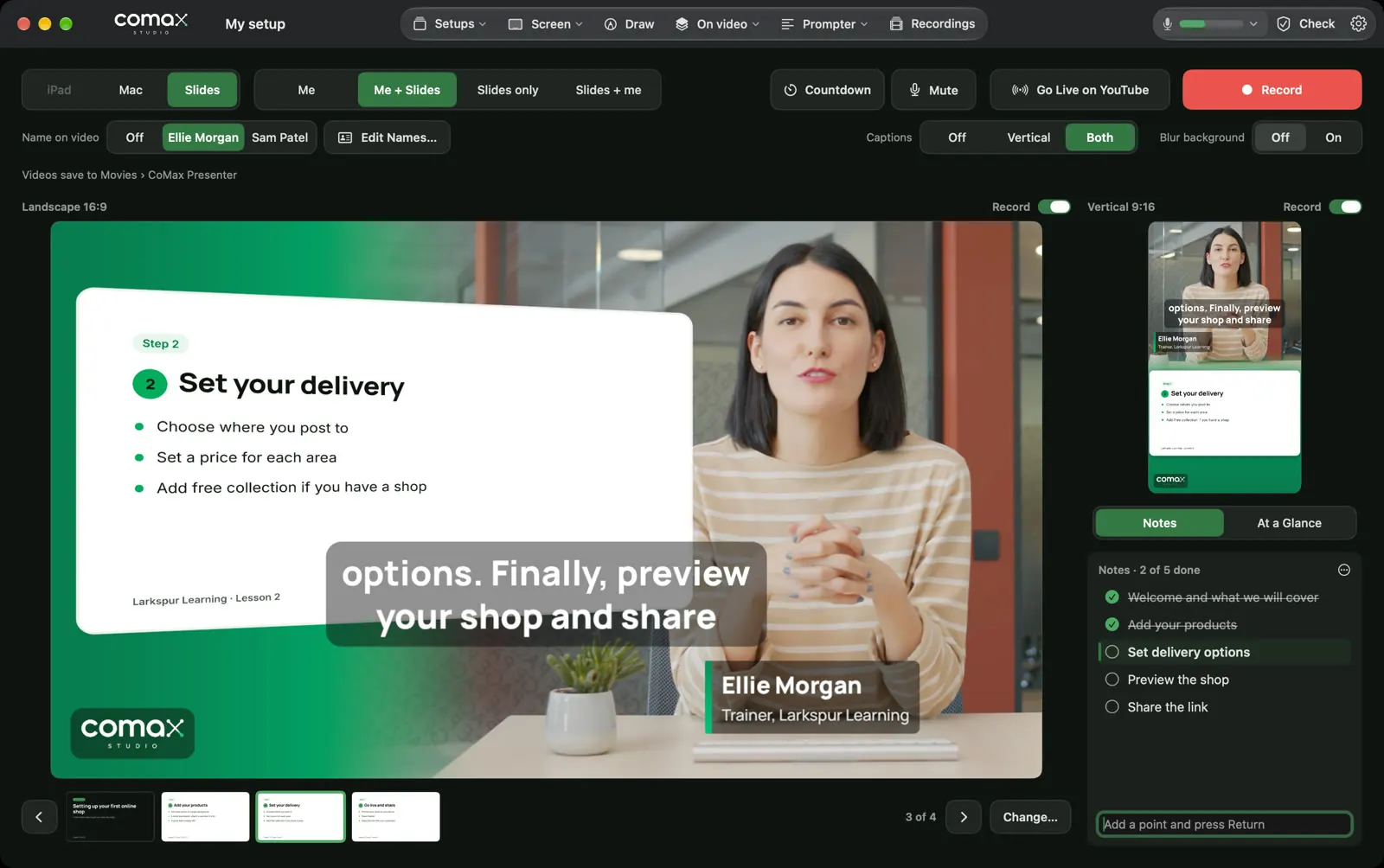
Open a PDF of your slides from Keynote, PowerPoint, Canva or Google Slides and they appear next to you, sharp in both videos. Move through them with the arrow keys or a presentation clicker.
How it works
- In your slides app, choose Export or Download › PDF.
- In CoMax Presenter, click Slides and choose the PDF. It remembers it for next time.
- Press → for the next slide, or click one in the strip under the preview. From Zoom or Teams, use Control Option →.
04 · Teleprompter
A teleprompter just under your camera
Your script scrolls in a slim strip at the top of the screen, right below the lens, so you read while looking at the people watching. It floats over Zoom and Teams too, and never appears in your recordings or screen shares.
How it works
- Paste your script into the teleprompter window.
- Drag the strip under your camera and set the text size.
- It can start from the top as soon as you press Record.

- Steady speedScrolls at the speed you set.
- Follow my voiceKeeps the line you’re saying at the arrow, and waits when you pause. Needs macOS 27.
- While I talkMoves only while the microphone hears you.
05 · Notes and takes
Keep your place, and cut your mistakes
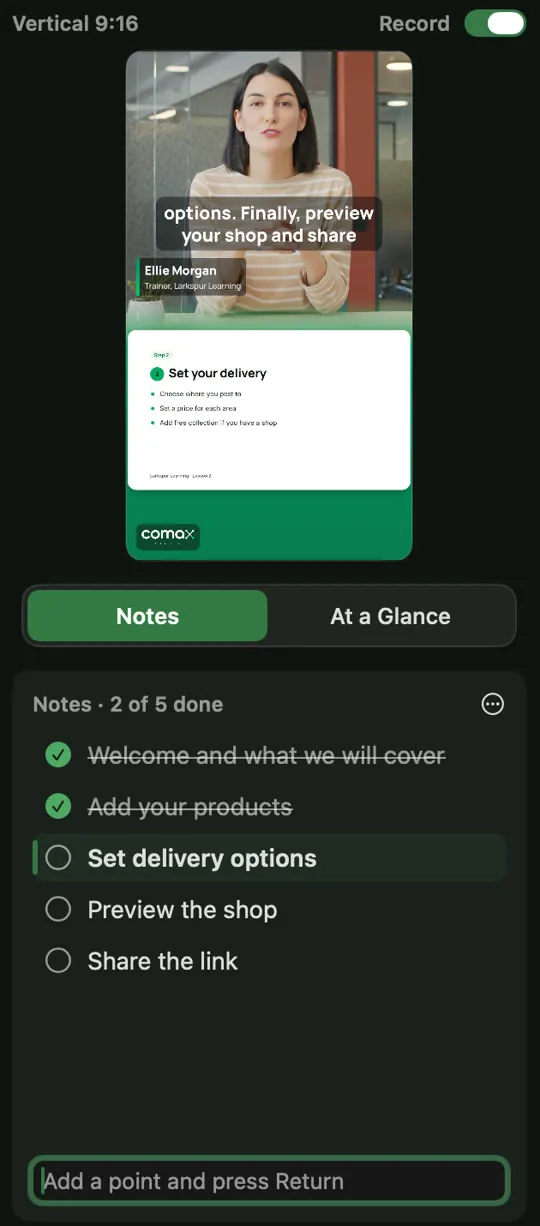
A short checklist of the points you want to cover sits beside the video. Only you can see it. While recording, mark any take that went wrong, and CoMax Presenter saves an extra copy with those parts cut out.
How it works
- Type your points before you start, or paste a list.
- Tick each one off as you go; the next one is highlighted in green.
- Mark a good or bad take with Control Option G or B, from any app.
06 · Captions
Captions you can check before you share
Captions are made on your Mac as you talk, so nothing is sent away to be transcribed. Switch them to Off, Vertical or Both right from the main window. You see them live, and so do viewers on YouTube, Zoom and Teams. Your recordings stay clean until you’ve checked the words.
How it works
- Record as normal. A subtitle file is saved with every recording.
- Open Recordings, choose the video and fix any words in Captions, with find and replace.
- Press Make Video for a copy with captions, in both shapes.
- Words to expect. Add names and terms you use, so they’re spelt right.
- Send for checking. Email the captions to a colleague, then load their corrected file.
07 · Recordings
Watch, name and tidy your recordings
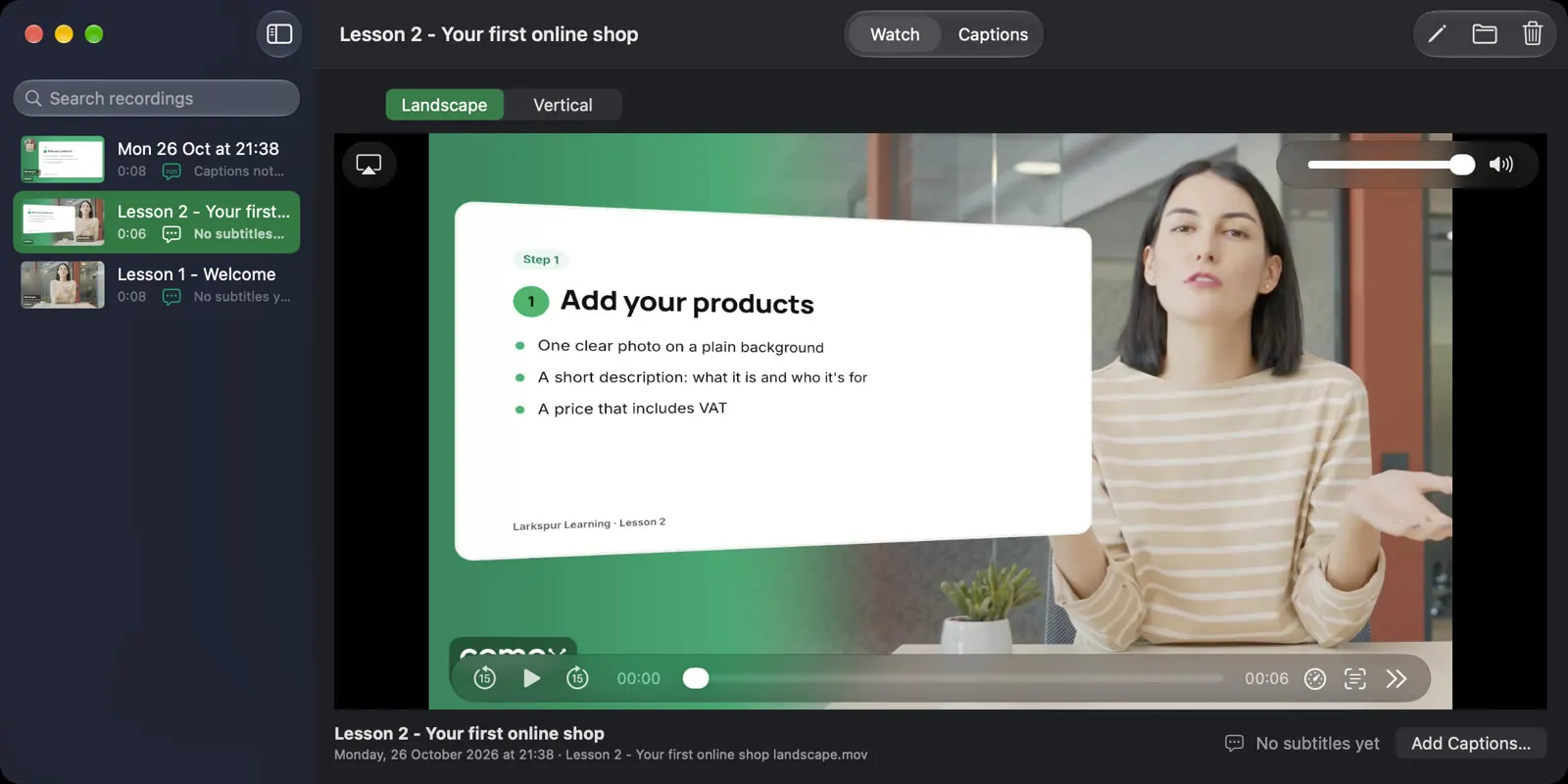
Every recording is listed in one window, with a picture, its length and whether its captions are done. Watch either shape, give it a proper name, or move it to the Bin.
How it works
- Click Recordings in the toolbar.
- Choose a recording and press play. Switch between Landscape and Vertical.
- Give it a name and every file that belongs to it is renamed to match, ready to upload.
08 · Your brand
Your logo, colours and names on every video
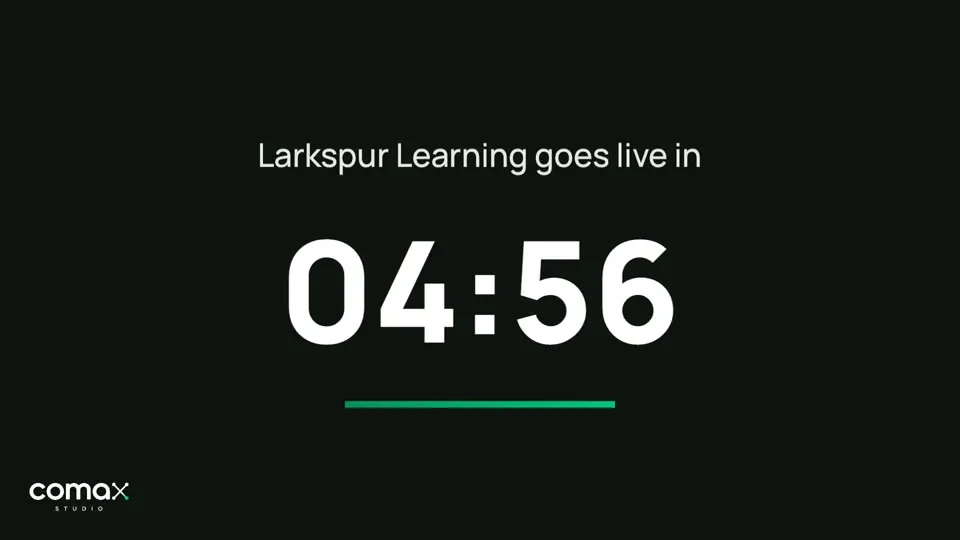
Add your logo and a partner’s logo, choose your colours, and show a name banner for you or a guest at the click of a button. Before you go live, a countdown screen with your own heading tells viewers when you’ll start.
How it works
- Add logos, colours and up to four names in Settings.
- Save it all as a setup, and switch between them from the Setups menu.
- Share a setup with your team as one file. They double-click it and they’re ready.
09 · Going live
Live on YouTube, Zoom and Teams
Use CoMax Presenter as your camera in Zoom, Teams or Meet, and the call sees your layout, screen, captions and logo. Or stream straight to YouTube Live from the same window.
How it works
- In your call app, choose CoMax Presenter as the camera.
- For YouTube, paste your stream key once, then press Go Live on YouTube.
- Press Check first: it tests your camera, microphone, screen, internet speed, disk space and power.
10 · Look and sound
Look and sound your best, anywhere
Blur a busy room behind you while you stay sharp (one switch on the main window), and let voice clean-up take out background noise. Both happen on your Mac, in recordings, on YouTube and in calls.


- Voice clean-up. On by default. Takes background noise out of your voice.
- Brightness and warmth. Small adjustments for your camera, in Settings.
- Light or dark. The app follows your Mac, or pick one.
11 · Safe recording
Built so you don’t lose your work
-
Crash-proof
If your Mac crashes or loses power, you keep everything up to a few seconds before. The videos are tidied up next time.
-
Low-space warnings
A warning when space runs low, and the recording stops safely, keeping what you have, before the disk is full.
-
Unplugged? Carry on
If a camera or microphone is unplugged, the Mac’s own takes over and you’re told.
-
Stays on your Mac
Recordings, captions and notes stay on your Mac. Video only leaves it when you go live or join a call.
Requirements
What you need
- A Mac with macOS 14 Sonoma or later
- Any webcam or camera your Mac recognises, and a microphone
- Optional: an iPad and its cable, or an Android tablet
- Optional: a YouTube channel with live streaming switched on
Be one of the first to try it
Join the early-access list and we’ll let you know when CoMax Presenter is ready to download. See pricing.
Join the early-access list